
A few weeks back, I published “Evernote on the iPad”, in which I described a method to let you capture links or webs pages to Evernote on the iPad, as I saw no “save to Evernote” option. A fellow iPad fan set me straight, there’s a better way, much better in fact. Let’s start by going to the Evernote application,
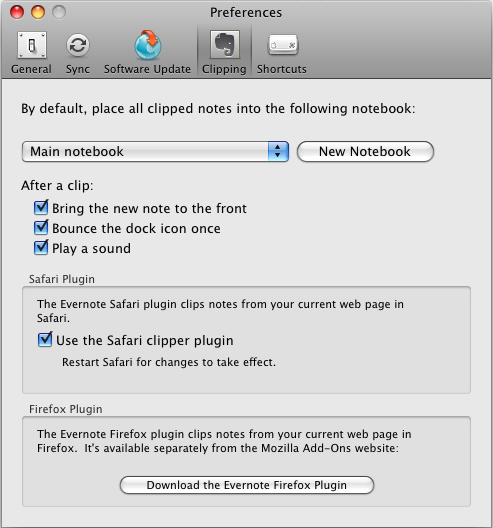
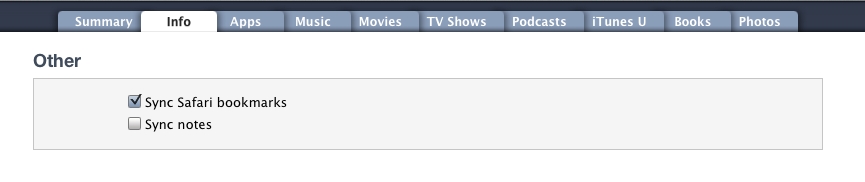
Check the box to use the Safari clipper plugin. Next, you are looking at the top of the screen when the iPad is plugged in and ready to sync. Go to the info tab, and be sure that Sync Safari Bookmarks is checked.
 Last – I love Evernote. I have a few screens full of apps, but if I had to choose, this is the killer app. This is the missing link right here. The bookmarklet needed to put “add to Evernote” on your Safari menu bar. When you go to that menubar on Safari (or Firefox, for that matter) bookmarks shown are simply that, bookmarks as we know them. But, there’s now a new breed of bookmarklets which are little javascript applications and do more than just take you to a web address. Open Safari on your desktop, and drag this image to your linkbar:

You should now see a link that says “clip to Evernote on the linkbar. Almost done. Now, sync your iPad.

You now will see that bookmarklet appear along with any other links on your Safari linkbar. If you use the Bookmarking site Delicious or other sites that use these bookmarklets, this process will set you up to use them on your iPad. All but the Yahoo link are this type of bookmarklet.
I hope you find this useful. Let me know if you you use any of these features.
Joe
When you sync the iPad, do other bookmarks appear? In my image you can see I have one for Yahoo as well, that’s just a regular bookmark. That’s the first step to know you are syncing correctly.
i followed the instructions but no web clipper appears on ipad safari- any comments appreciated…
i got it to work- (forget to check the save bookmarks box)
thanks for the info, because not being able to clip web pages was the only thing keeping me from using an ipad…
Thanks for the update. It’s great when it’s all working, quite a few sites use these java bookmarklets, and they work great on the iPad.
Sorry, doesn’t really work in an acceptable performance … very slow. What a pity … a missing web clipping service within the browser is for me personally a killer argument against the iPad.
I understand. I love the iPad, but don’t claim it to be perfect. For me, Evernote is just one great app, and still useful on the iPad.
Thanks for this awesome tip!! I too LOVE Evernote and my iPad. I’ll use this OFTEN!! Thanks SO MUCH!
I appreciate the comment. Glad I helped you.
How to get to the PREFERENCES window of Evernote application as your first step? When I open Evernote on iPad, I do not see tab like setting or tools etc. I am using free version.
I am on a Mac as my main computer, not sure how to do this on a PC.
You would need to edit the bookmarklet directly;
———————————————
javascript:(function(){EN_CLIP_HOST=’http://www.evernote.com’;try{var%20x=document.createElement(‘SCRIPT’);x.type=’text/javascript’;x.src=EN_CLIP_HOST+’/public/bookmarkClipper.js?’+(new%20Date().getTime()/100000);document.getElementsByTagName(‘head’)[0].appendChild(x);}catch(e){location.href=EN_CLIP_HOST+’/clip.action?url=’+encodeURIComponent(location.href)+’&title=’+encodeURIComponent(document.title);}})();
———————————————-
this is the code that will clip to Evernote
So there’s no way to activate web clipper on the iPad directly? You can do it only by syncing the iPad with your computer?
Brilliant, thanks!
Took me a while to figure out that it was the actual image on this page that needed to be dragged but it works a treat!
Have you worked out yet how to make a note produced on the iPad a ‘favorite’ just like on the iPhone?? No ‘star’ on the iPad…
Another missing function is to be able to do this from the MacBook- and even better if one could do it in bulk i.e. make all notes accessible off-line on all mobile devices.
Hi Joe, i would really appreciate it if you would explain how to do this on a pc, I really want my evernote to work on my iPad, it’s really frustrating thanks cate
Sorry, not quite sure, Cate. My home computers are Macs, I thought the PC version of safari would act the same way. I’ll try to find this out for you.
Joe:
Just loaded it up on my Safari on a PC and it worked just time. Have tested it on my iPad, and no problems. I had the Evernote extension on Firefox, and now I have it on both. Wonderful tip.
Txs for a good tip. I have used the mail option and sent websites to evernote by sending it to my evernotemail. That works fine, but this looks better.
The images were both taken from my Mac screenshots. My understanding is that PC prefs are pretty similar, but I’ve not confirmed this yet.
Thanks for the helpful post – I cannot seem to find the preferences window that you show in the screenshot though. Is that available on the iPad or only on Mac version? If iPad, might it only be available for professional level users?
Thanks, it works. Strange that Evernote hasn’t offered this.
Excellent! Glad to help.
Thanks! I can confirm you that this actually works still today and it just increased my performance and bettered my workflow 🙂
I can now do research on my iPad rather than the Mac and still have all synced back: great!
Its April 2012 and I got it to work on my iPad 2 with iOS 5.
Thanks so much for posting this. Very helpful!!!!
This was very helpful. So happy to finally have a “clip to evernote” button on my iPad. Thanks!
Thanks Joe, Can’t find preferences on iPad. Not in settings and can’t find in apps. Any help is appreciated.
John,
Preferences aren’t on iPad evernote app. They are in the desktop version. They have also changed since the original instructions were posted, so you might not see a Safari Plugin section but that’s ok.
The main thing to do is drag the green bookmarklet above, in the original instructions, to your Safari bookmark bar. Then follow the rest of the instructions and you will see the clipper in your iPad’s Safari bookmarks along with all your other bookmarks that have been synced.
I can’t find the preferences screen to get started. I have evernote on my Ipad, and I use Safari on the Ipad