
I’ve written about Evernote, the software that you run on your computers, phone, etc to keep track of your stuff. Whatever documents you want to be able to access from anywhere with search capability. One feature I struggled with was the ability to scan right into the application. I had seen ads for ScanSnap by Fujitsu that lets you do this, but as I already have an HP Officejet, I was hoping that I could set it up to scan into Evernote without having to copy, paste, or import. Now, success. For those who aren’t aware, I am on a late model Macintosh, an MDD Dual core G4 PowerMac to be more specific. The HP is an Officejet J6480, a model recently discontinued, but I’m sure the process would be similar on current models.
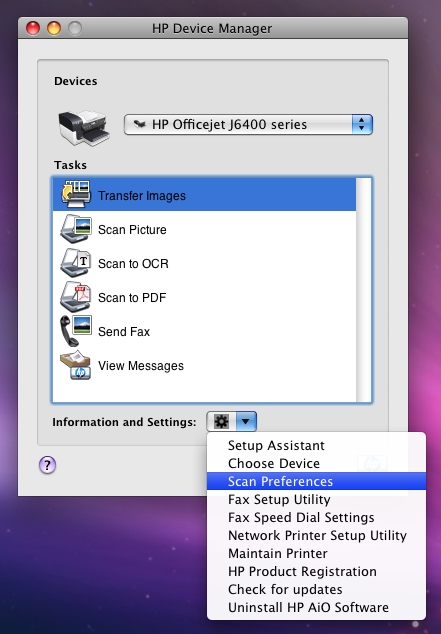
First, open HP device manager (search for it if it’s not within the HP folder among your applications), and go to the information and settings icon and choose Scan Preferences.
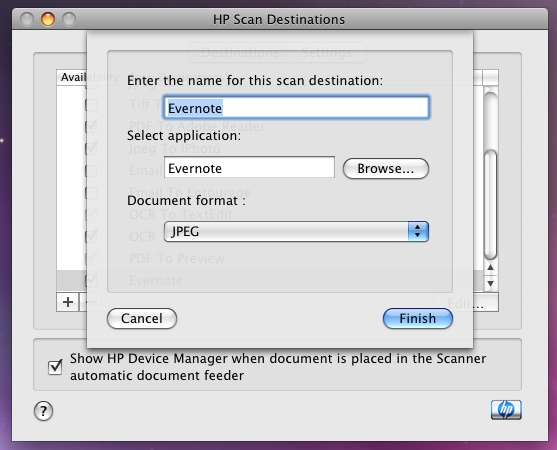
Next, enter Evernote into the destination name, browse to find the Evernote application, and choose JPEG as document format. Hit Finish, and you should be all set.
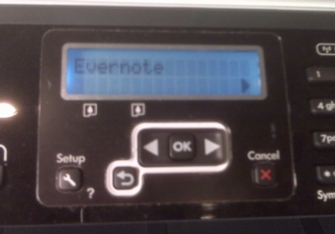
Now, when you press “Scan To” (toward the left on my printer, not shown here), the menu with offer you Evernote as a choice of destinations. You can now scan a document directly to Evernote without any additional steps.
Update – alternately, once you load Evernote as a destination you can use the HP Scan Pro utility to scan directly.
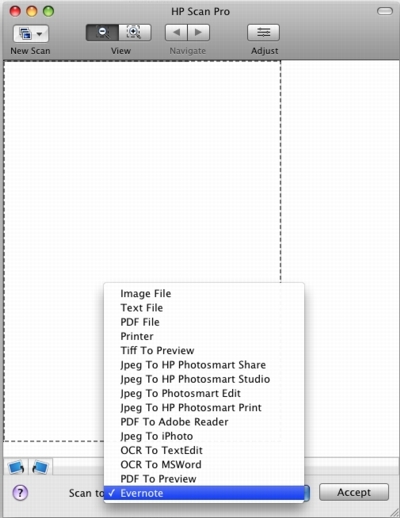
The advantage is that you can crop images or select exact passages on a sheet of paper to scan. Again, this method will load the scan directly to Evernote.
Let me know if this worked on your scanner, I’d like to track which models can use this advice.
Joe
Models so far – HP2610, J6480, C4480
Thanks Joe,
I use Evernote and have been using the scan to jpg then cut-copy into evernote. I’m using a Xerox flatbed, I’ll try it out.
Great! I’ve love to know if this works on other brands. Evernote talks mostly about SnapScan.
I was somewhat successful in getting the Xerox DocuMate 510 to import into Evernote. I still need to use their software to scan because their are no buttons on the machine. After that I set up a button that will import into Evernote. But-and a big fat BUT, my company JUST blocked us from accessing Evernote.com. Since I use it the most at work and for work related things, I’ll have to look for another solution.
OMG I loved it because while working on the Plant floor I could take pictures and make note on my blackberry then sync it to the net. By the time I got back to my desk to process everything my desktop was synced and I was done. 🙁
Joe, Thankyou very much. I have an older HP2610 and trying to get it to work with a Mac is very frustrating. The scan quality is great, but it tends to auto-crop everything. I had almost given up trying to link it with Evernote. What a massive help your advice has been. Scanning every bit of clutter is so much easier when it goes straight to Evernote.
If anyone’s interested I’ve just done a blog post about scanning to Evernote with an Epson Perfection scanner
http://www.techandlife.com/2009/12/scanning-documents-and-notes-directly-to-evernote-with-an-epson-scanner/
Excellent. I hope I can help some people by sending them your way.
Hi.
Works fine on HP photosmart C4480 (part of the C4400 series).
have always hated the HP photosmart studio software on osx, and was annoyed at the inability of Leopard’s Image Capture software (much more capable in Snow Leopard) to detect my printer, but your post alerted me to a very palatable alternative. Thanks Joe, and Merry Christmas!
Excellent, thanks for letting me know, glad to help. Merry Christmas to you as well!
Hello Joe, thank you for your post! I would like to add however, that the HP (scan) software doesn’t work anymore since my update to Snow Leopard. Fortunately I found the solution here: http://h30434.www3.hp.com/t5/Mac-printing-and-scanning/HP-c5180-and-Snow-Leopard-10-6-3-unable-to-see-printer-over/m-p/250184 First you have to uninstall all HP software, then you use Mac OSX’s built-in scan software (through Preview, Image Capture or System Preferences -> Print & Fax). Hope this info is useful to your readers! 🙂
Much appreciated. I’m on an older Mac. An MDD G4 (a few around the house, actually) and Leopard is as high as I go. Even though I write on finance, Google has been kind to this article, and I’m glad it may help others.
Joe– thanks a lot! This worked like a charm on my HP OfficeJet Pro 8500. Under “Destinations” after you hit “#” you get radio buttons offering “Picture editing application,” “Email application” or “Text/OCR application.” Leave it on “Picture editing.” It was also wonderful to discover I could uncheck the many options I don’t use.
Looks like you could also add “OCR to Evernote” if you have premium.
Worked perfectly for me. Thanks!
Thanks for the note. A bit of tinkering, I know. Amazing these things all work together. Truth is, I got a new Mac Pro and gave up. The printer is plugged in through the old G4 where Evernote works just fine, and the Pro prints through the network along with other computers in the house.
Thanks for posting your message – I kept working with my HP5500 and MacBook which finally took the scan. The menus and settings are, for me, somewhat difficult to find and establish but it is possible. I needed to set Evernote as the destination a couple of times, and it required that I set the file type as pdf since I do not have Evernote premium yet. At first it produced a small image of the page, so I had to manually drag the grid on the preview screen in order to capture the entire page I wanted.
Joe, I am brand new to evernote. I am currently copying parts of books I wish to keep for research, staplling them and thenplacing them in a manila filing system. I want to move into 2011. For example say I want to copy pages 1-5 of ANYBOOK. Is it possible to get the pages to show up in order so I can access them like I am currently doing (e.g. pull them out of my file stapled ready to read in order) or will they be scanned like 5 separate unrelated pages? Thanks!
Roger – If I understand you, you can can go to Evernote, highlight the 5 pages, go to Edit in menubar and combine. You’ll then have one multipage document.
You can scan directly to Evernote with Canon multifunction printers. Just done a how-to post here:
http://www.techandlife.com/2011/07/scanning-documents-and-notes-directly-to-evernote-with-a-canon-mp-series-printer/
I have an HP J6480, but my version of HP Solution center appears different. I can’t figure out how to add an application as a Scan To location.
HP D110 works – seem though that it doesn’t save as an option but easy enough to select the app as described above and then scan to evernote.
Thank you for the tip.
I have a Brother MFC-7345N and the software that installs with it is PaperPort (now owned by Nuance). I was able to configure a program link to Evernote within PaperPort and send to Evernote as either an Image or Text (which is converted with OCR).
I’m fairly pleased with my results.
Jason, I’m approving the comment if someone can help. My work PC is Windows XP, else I’d try this as well.
I know this is all Mac users commenting, but does anyone know how to do this in Windows Vista? I’m trying to get this capability on my company laptop using my home scanner HP OfficeJet K80.
Hey, I’m googling my problem and I came across this.. and see that it worked for me in the past! The problem now? Since upgrading to Lion (10.7), you have to uninstall the HP software and scan through the OS X interface. It’s actually good, but when I try to go to “Evernote” under “Scan to:” it’s grayed out. I believe Snow Leopard (10.6) has the same problem. Anyone have any ideas? Joe, I hope you get a new mac soon & figure this out for me!
I’m having the same problem as Nat. Just upgraded to OSX Lion and now when I try to scan directly to evernote, that application is grayed out. Anyone figure this out???
Guys, I’m sorry to say, when I upgraded to Snow Leopard this great feature was lost on the HP Officejet. For me, the Office Jet scanner app worded great on Leo, but on Snow, they crippled it. I can’t guess why.
Dude! 1000 Thank You’s! I am using this to keep track of receipts. Cannot get Image Capture to recognize my HP C4280. I wish I found this article sooner.
iMac G5 10.5.8 Leopard
Glad that helped you!